
Turning off AutoComplete
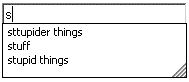 As soon as you begin to type something — a Web site in Internet Explorer, for instance, a credit card into an online form, or several other items — Windows XP often races in to help. It sends down a little box, as seen below, listing items you’ve typed in previously.
Some people find it handy to tap the down arrow key and pluck an oft-typed phrase from Windows XP’s “AutoComplete” list. Others prefer to keep Windows XP from looking over their shoulder and jotting down their words. If you don’t like Windows XP spying on you, here’s how to make it stop.
Deleting individual entries from AutoComplete
When you fill out a form, Windows XP’s AutoComplete feature drops down a list with information you’ve previously typed into the form — including any misspelled entries. Unless you know this trick, those misspelled entries could hang around and bother you for years.
Individual AutoComplete list entries are fairly easy to delete:
- Click in the form’s box, and press the down-arrow key to view the previous entries.
- Keep pressing the down-arrow key until you’ve highlighted the bothersome entry.
- Press the Del key to delete the entry.
Be sure to use your keyboard for this, as your mouse won’t do the trick. Also, this doesn’t work for Web addresses typed into Internet Explorer’s address bar. To clear those, you need to delete Internet Explorer’s History.
Turning off AutoComplete completely
If you don’t like seeing your user names, passwords, and other information sitting in drop-down windows, tell Windows to stop by doing this:
- Open Internet Explorer.
- Choose Internet Options from the Tools menu.
- Click the Content tab.
- Click the AutoComplete button.
- Click to remove checkmarks from these items:
- Web addresses
- Forms
- User names and passwords on forms
- Prompt me to save passwords
- Click the Clear Forms button.
- Click the Clear Passwords button.
- Click OK.
Deleting old entries from the Search Companion
But you’re not through yet. Windows XP’s Search Companion also includes an AutoComplete feature, so it can remember every file and phrase you’ve searched for. Here’s how to turn it off, as well:
- Choose Search from the Start menu.
- Choose Change Preferences.
- Choose Turn AutoComplete off.
Although this stops the Search Companion’s little doggy from saving your future search strings, it won’t erase the existing entries. You can delete individual entries one at a time, as described earlier on this page, but to delete them all at once, download and run this program from Doug Knox’ Web site.
Posted: February 14th, 2006 under Privacy, Windows XP.
Comments
Comment from Leo
Time May 25, 2011 at 11:37 am
Thanks you so much. I’ve been looking all over for this and finally rememberd that it’s called autocomplete today XD
Comment from Irene
Time August 7, 2011 at 7:31 am
Thanks you even internet explorer help didn’t explain how to do this very simple task! I found you throught Google…
Comment from Rick
Time October 12, 2011 at 6:40 am
Thank you, Andy. You made my day.
Pingback from Blog Of 'Dean Williams' – How To Disable HTML Input Autocomplete
Time December 13, 2011 at 8:58 am
[…] For now you could follow these instructions by Andy Rathbone. […]
Comment from JEAN
Time April 29, 2011 at 10:06 pm
THANKYOU SOOOO MUCH. I’VE TRIED EVERYTHING I COULD FIND ON THE NET TO GET THIS DONE! YOURS WAS THE ONE WHO ANSWERED MY QUESTION IN A SIMPLE, EASY AND FINALLYEFFECTIVE WAY TO STOPTHE PROBLEM.. YOU’RE #1 IN MY BOOK. THANK YOU SO MUCH. CUDOS!