
The problem with Media Player’s copy protection
 Q: I copied some of my music files from my old PC to my new PC. But my new PC won’t play my WMA files.
Instead, I see a message that I need to download a license to play them. But when I click on the Download License link, a message says the license has been downloaded ten times and can’t be downloaded again.
I converted these files to WMAs from my own CDs using Windows Media Player, and the CDs weren’t copy protected. What’s wrong?
A: Microsoft turned on copy-protection by default on the version of Windows Media Player that shipped with the original version of Windows XP. Unless you manually turned off the copy-protection, every WMA files you created during that time will have same copy protection problems you’re now experiencing.
With copy-protection turned on, Microsoft keeps track of how many times the file is copied. When it reaches the limit of ten, Microsoft sends this message:
A license is required to play this file
The file you are trying to play was ripped (copied) from an audio CD.
During the ripping process, the file was “protected.” This limits the number of computers on which the file can be played.
To play the file on this computer, you must download a license (a process known as “license migration”). A license acts an electronic key that allows you to “unlock” a protected file and play it.
To download a license for this file, click Download License .
You’re now feeling the effects of the copy-protection that Media Player snuck into your files many years ago.
At this point, your only solution is to delete those old copy-protected files, and then rip your CDs again. But this time, create MP3 files, by following these steps:
- Click Tools on the menu bar, and choose Options from the drop-down menu. (Press Alt to bring the menu bar into view, if necessary.)
- Click the Rip music tab.
- Choose MP3 from the Format menu, and click OK.
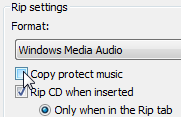
MP3 files lack copy protection, so they’re less likely to cause problems in the future. But if you must stick with the WMA format, make sure the copy protection is turned off by following these steps:
- Click Tools on the menu bar, and choose Options from the drop-down menu.
- Click the Rip music tab.
- Click to remove any checkmark from the “Copy protect music” check box, and click OK.
Tip: Be sure to delete your copy-protected files from both your hard drive and Media Player’s library before re-ripping your CDs. Otherwise, you’ll see several versions of your songs in Media Player’s library, and you won’t know which songs are copy-protected.
Posted: November 20th, 2009 under Windows XP.
Tags: copy protection, license is required to play this file, windows media player, wma
Comments
Comment from Andy Rathbone
Time December 29, 2014 at 2:09 pm
> Harry: If the Copy Protect Music box is grayed out, it sounds like you’re converting the CD’s songs to MP3 format, which isn’t copy protected. When you copy them to your memory stick, they should work fine in the car.
Comment from Darryl
Time April 21, 2015 at 10:05 am
Hi Andy. I Recently bought a new laptop with windows 8.1 on it and every WMA file i try to play it tells me i need a licence but when i go to the browser it shows me, “The license cannot be downloaded because your Web browser is not supported.
To download a license, you must install Microsoft Internet Explorer 7 or later.
To install the latest version of Internet Explorer, see the Windows Update page.”
Is there anyway i can sort this issue out or should i just convert all my WMA file to mp3’s and get it over with?
Comment from Andy Rathbone
Time April 21, 2015 at 10:10 am
Darryl: That message should go away once you make Internet Explorer your default browser and restart your computer. However, you’ll always run into problems with digitally protected WMA files until you convert them to MP3 files, which are more widely supported and create fewer problems down the road.
Comment from Harry Sweeney
Time December 19, 2014 at 12:02 am
Andy I am trying to copy my cds to a Trax media player or memory stick and find that the Copy Protect Music tick box is greyed out and not available for changing. These are all purchased cds that We want to play in the car. Can you assist please