
Uninstalling Windows Messenger in Windows XP
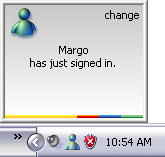 Some folks love instant messaging programs like Windows Messenger. They love to be interrupted, and they like to bug their friends. Other folks hate messaging programs, and they loathe seeing Windows Messenger slurping up memory as its dastardly little icon rests next to their computer’s system clock.
Unlike most Windows XP accessories, Microsoft made Windows Messenger particularly difficult to uninstall. Control Panel’s “Add or Remove Programs” area, where users could remove traditional programs like Paint and WordPad, simply didn’t list Windows Messenger. Thankfully, Windows XP’s service packs make the hatchet job much easier, but Windows Messenger can be removed even if you haven’t installed a Service Pack.
Since Messenger’s removal process differs depending on whether or not your computer has the Service Pack, always check for the Service Pack before trying to remove Messenger.
Checking to see if your computer has the Service Pack installed
Many people have downloaded and installed Windows XP’s Service Packs through Windows Update. Also, most new computers come with Windows XP’s Service Packs pre-installed. To see if your computer has the Service Pack, click the Start button, right-click My Computer and choose Properties.
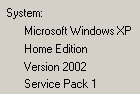 When installed, the Service Pack adds the words “Service Pack 1”, like in the figure to the left, or Service Pack 2 or Service Pack 3, which is even better. (Service Pack 2 contains all of Service Pack 1, along with other Windows fixes.)
Killing Messenger on computers that have Service Pack 1 installed
Installing any of the three Service Packs will list Windows Messenger as a removable item in the Windows Components area. Here’s the step-by step for removing Windows Messenger if your computer has a Service Pack installed:
- Open Control Panel from the Start menu.
- Choose Add or Remove Programs.
- Select Add/Remove Windows Components.
- Click to remove the checkmark next to “Windows Messenger”.
- Click the Next button.
- Click the Finish button.
- Restart your computer.
Removing Messenger on computers that don’t have Service Pack 1
If your computer doesn’t have a service pack installed, purging Windows Messenger is more difficult. Microsoft forces you to take a sneaky backdoor route. Here’s what to do:
1. Verify that your computer doesn’t already have the Service Pack installed, or these steps will lead to a confusing “unregistering the ocx 16422” error message and possible further problems.
2. Copy the boldface sentence below. (To copy the sentence, highlight it with your mouse, right-click it, and choose Copy from the pop-up menu.)
RunDll32 advpack.dll,LaunchINFSection%windir%\INF\msmsgs.inf,BLC.Remove
3. Click the Start button, choose Run, and paste the sentence into the “Open” box. (To paste it, right-click inside the “Open” box and choose Paste.)
4. Close your Internet browser, MSN, Windows Messenger, and Outlook Express, if they’re running.
5. Click the Run window’s OK button.
When you restart Windows XP, Windows Messenger will no longer sit by your computer’s clock, hogging memory and resources. However, it may still reappear when you load Outlook Express, a curable problem described below.
Stopping Windows Messenger from reappearing with Outlook Express
Sometimes the little beast just doesn’t give up. For instance, even after you go through the trouble of “uninstalling” the darn thing, Windows Messenger still pops up whenever you run Outlook Express — which some people do every time they start Windows.
To stop Outlook Express from dragging Windows Messenger back onto your System tray, follow these steps:
- Open Outlook Express.
- Choose Options from the Tools menu.
- Click the General tab.
- Click to remove the checkmark from the box marked, “Automatically log on to Windows Messenger.”
- Click the OK button.
- Choose Layout from the View menu.
- Click to remove the checkmark from Contacts.
- Click the OK button to close the Window.
The ugly truth about Windows Messenger
Actually, the steps on this page simply keep Windows Messenger from automatically running when you start Windows XP. The Messenger program still lives on your hard drive, waiting to be called into service. That’s because Microsoft says that Windows Messenger’s “Messenger Application Programming Interfaces (APIs)” is necessary for Outlook 2002, Outlook Express 6, and the Remote Assistance feature.
For more technical information about Windows Messenger, Microsoft offers this page with instructions on editing the registry. If you’re not comfortable editing the registry, please don’t, as a small typographical error can make both you and your computer very, very unhappy.
Finally, if you’re using MSN Messenger instead of or with Windows Messenger, check out Jonathan Kay’s Web site for information.
Posted: October 27th, 2008 under Error message, Windows XP.
Tags: Uninstalling Windows Messenger, unregistering the ocx 16422, Windows messenger
Comment from Stephania
Time December 16, 2009 at 7:04 am
Thank you!!! It was driving me bonkers every time it came up. 🙂