
Using Windows XP’s hidden fax program
 Both Windows XP Home and Professional include a program to send and receive faxes, but the program’s hidden: It’s not normally installed when you install or upgrade to Windows XP.
After installing the fax program, it’s no problem to leave the fax turned on all day. Sure, the junk faxes still pour in. But I just click on their names and press the Del key: No more wasted fax paper!
You need four things to send or receive faxes with Windows XP:
- Your computer must have a dial-up modem. Look for a telephone jack on the back of your computer, laptop, or “all-in-one” printer.
- Windows XP must have its fax program installed. The program isn’t installed automatically, and you may need to insert a Windows XP CD to install the fax program. Not all new computers come with a Windows XP CD.
- Your home needs a phone jack with a working phone line. DSL users also need a converter to plug into their DSL jack — the same converter they need in order to plug in a regular telephone. And, no, Voice Over Internet Protocol (VOIP) won’t work for sending faxes reliably. A cable modem can’t send faxes, either.
- A phone cord connected between your computer’s dial-up modem jack and the telephone jack in the wall.
Cable and DSL users probably can’t send faxes unless their PC came with a built-in dial-up modem. If you don’t spot a phone jack on your PC, you can buy a cheap USB or card-based fax modem; Upgrading and Fixing PCs For Dummies shows how to install it.
Installing Windows XP’s fax program
Windows XP doesn’t install its fax program automatically, like it does for Windows Messenger and other programs. Here’s how to pull it out of its hiding place.
- Choose Control Panel from the Start menu.
- Choose Add or Remove Programs.
- Click Add/Remove Windows Components to start the Windows Components Wizard.
- In the Components list, click to select the Fax Services check box, and then click Next.
- Click Finish when installation is through.
- Click OK to close any open windows.
Wait while Windows begins to install the Fax program. If requested, insert your Microsoft Windows XP CD and click OK.
(No Microsoft Windows XP CD? Before assuming you’re completely out of luck, tell XP to look in this folder, instead: C:\windows\i386\, as some manufacturers hide it in there.)
The installation program leaves you with a headscratcher, though. Where is the Fax program? Actually, Windows treats the fax program as a printer, making faxing is as easy as printing. Use the same steps you use to print your document, except select “Fax” from your list of printers.
Sending a fax in Windows XP
For instance, to fax a letter you’ve written in Word or WordPad, choose Print from the File menu. You’ll see the a fax icon, like the one to the left, listed next to your printer icon. Choose the fax icon as your printer, and the Fax Configuration Wizard appears. The Wizard guides you through filling out a “cover letter” form, then it sends your fax.
Receiving a fax in Windows XP
To leave your computerized fax machine on and ready to receive any incoming faxes, follow these steps:
- Choose All Programs from the Start menu.
- Choose Accessories, then Communications, then Fax.
- Select Fax Console.
- Choose Fax Monitor from the Fax Console’s Tools menu.
The Fax Monitor waits silently for your next junk fax to arrive — provided you leave a telephone cord constantly plugged into both your phone outlet and your computer’s fax modem. When a fax arrives, a little fax icon appears on your taskbar near the clock, and a message alerts you to its arrival.
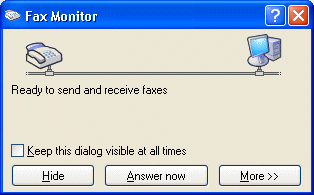
Tip: Click the Fax monitor’s Hide button to let it work in the background, off your desktop.
Windows XP’s Fax Console is a surprisingly powerful program, with an easy-to-use Help system. Choose Help Topics from the Fax Console’s Help menu for information on customizing Cover letters, as well as help on archiving and managing your faxes.
Troubleshooting
- Tony says the fax program stopped working. He headed to the Control Panel’s Add or Remove Programs area, and uninstalled the fax program. After reinstalling it and restarting his PC, the program began working again.
- Bill says Windows XP’s fax program used to work, but then kept saying “No Answer,” even when the other fax machine had answered. After trying in vain to uninstall and reinstall the program, he realized he’d added the dial-up codes to block his Caller ID. Once he removed those, the fax began working again.
Posted: September 10th, 2009 under Windows XP.
Tags: dsl converter, fax program, fax services, free fax program, receiving faxes, sending faxes
Comments
Comment from Orionmz
Time November 4, 2009 at 7:41 am
Fantastic. I was having problem on sending, receiving was no problem.I had to look for a convensional fax machine to send my faxes.Now its much easier and cheap to send and receive my faxes.
Thanks.
Comment from Tom
Time November 23, 2009 at 8:14 am
When I select “answer manually” in Windows XP fax program, does the program wait until it hears a fax scream before doing anything and ignore regular phone calls, or does it try to answer any and all incoming phone calls.
Comment from Andy Rathbone
Time November 23, 2009 at 11:26 am
Tom: Choosing “Answer Manually” means you must always be sitting at your PC to receive incoming faxes. When the phone rings, the fax program displays a text balloon, asking whether or not it should pick up the phone. If you pick up the phone and hear a fax, you click “Yes” and hang up so the program can receive the fax. If you don’t hear a fax, ignore the program’s message, and continue your phone conversation. And, of course, if you’re not home to click Yes, you’ll never receive any faxes.
You might enjoy a chapter I wrote for PCs: The Missing Manual. The chapter, which includes a lengthy section on faxing in Windows XP, was cut from the book at the last minute for space reasons, but you can download the chapter’s PDF file for free: Appendix C: Other Cool Things You Can Do Online.
Comment from Annette
Time November 26, 2009 at 6:29 pm
Thanks so much for the tip!! Faxing has always been a drama, but didn’t do enough of it to justify buying a standalone unit. Just installed the XP fax program, scanned the document into Word and faxed it directly from there. You’re brilliant. Thanks again.
Comment from Yamy
Time January 29, 2010 at 1:58 pm
Hi I have installed this but I am using Magic jack I know someone who told me they were using it but I have not seen them in school anymore so I have not been able to ask how to do this can you help?
Comment from Andy Rathbone
Time January 29, 2010 at 4:15 pm
Yamy, MagicJack doesn’t support faxing.
Comment from Arthur
Time January 31, 2010 at 9:50 pm
I have been using the Fax software in Windows XP Home Ed for many years, but I have found that quite frequently the faxes I send get severely distorted (e.g. letters stretched way out), or get sent incomplete, or seem to freeze up in the middle. At other times, the faxes go through OK. I have never had this problem even once faxing through my Canon scanner/fax/printer, which uses the same phone line, so I can’t blame problems on the line. Any ideas as to possible causes?
Comment from Andy Rathbone
Time February 3, 2010 at 7:14 pm
Arthur, I’m not sure why you’d experience distortion in some of the faxes you send. Anybody else out there having this problem?
Comment from Tony Bowling
Time February 13, 2010 at 7:41 pm
I have been using the XP fax software for sometime but I now have a problem I cannot resolve. It stopped working (would not receive). I cannot open the fax console. Tried restarting the comp and then I “reinstalled” the fax software from the OS disk and restarted the comp. Still no joy. When I try to open Fax console it shows at the bottom of the window that it is “refreshing” but never completes. Do you know how to uninstall the fax software because I am not sure if it really did reinstalled it? Or any other ideas?
Comment from Andy Rathbone
Time February 13, 2010 at 8:00 pm
Tony, to uninstall Windows XP’s fax program, follow the instructions on this page, but in Step 4, click to remove the check mark from from Fax Services. Windows XP will then remove the fax program when you click Next.
As for any other advice, you might try using System Restore, or thinking of any recently installed communications or security software may be interfering with your faxes.
Comment from Tony Bowling
Time February 15, 2010 at 12:14 pm
The remove and reinstall worked perfect! Thank you very much!
Comment from Ricardo
Time February 18, 2010 at 8:25 pm
Andy took the time to help me with Windows XP’s fax program today. Here’s a summary:
I took your advice and uninstalled the fax program then restarted the PC. Then I reinstalled the fax program, but it looked for the file “fxscfgwz.dll”, which I found in C:\i386 folder. I can now configure the fax normally and I offer you my sincere thanks!
I look up to those like you who share their knowledge with those like me, who don’t have it! As a published author, you surely didn’t have to take the time to reply to my request. The only other help I found in the Internet were those offering services and software that can fix everything for a fee. I will make sure to let my friends know what you did for me today.
Thanks again.
Comment from Ramazan
Time March 1, 2010 at 1:05 am
Hi everyone, i need help with Windows Xp Fax sending problem please. I can recieve faxes but cant send them.I dont know if there is a problem with the settings or not. My number first country code or no need for country code? Also another thing how come i can recieve but cant send when my number is both incoming calls and outgoing calls.Im using a faxmodem line.
Please help me out on this..
Thanks alot..
Comment from Andy Rathbone
Time March 1, 2010 at 2:02 am
Ramazan, you wouldn’t need to enter country codes unless you’re calling outside of your country. For troubleshooting, try calling the fax number with a regular phone. When you find a number that makes the other fax machine answer, you’ll know exact what number you’ll need to enter into the fax program to send the fax.
Comment from shan fu
Time March 1, 2010 at 8:56 pm
hi, i used xp pro and my fax can receive ok but cannot send – it gives an error “fax server information cannot be retrieved – the fax wizard will close now” – i have tried everything – uninstalled, re-installed, etc -what could be wrong?
Comment from Andy Rathbone
Time March 1, 2010 at 9:31 pm
I haven’t heard of the “fax server information cannot be retrieved – the fax wizard will close now.” Anybody out there experiencing a similar problem? Some people have found a few solutions, but they look fairly involved.
Comment from Angus Perkerson
Time March 8, 2010 at 8:00 am
Andy,
About six months ago I dropped the AT&T phone line and went to DSL only. Behind the DSL Modem I have a T-Mobile wireless router that sends the phone signals through the DSL line using, VOIP. Since I made this change I can no longer use the fax function on my HP All-in-One C7280. Will the Windows XP Fax work with this setup?
Comment from Andy Rathbone
Time March 8, 2010 at 9:58 pm
Angus, you can’t send a reliable fax over VOIP. The phone line for your HP All-in-One C7280 must plug directly into a “real” phone jack. If you’ve dropped your DSL provider’s phone service for “DSL only,” then you’re probably out of luck. But if your DSL provider did give you a phone number, ask your DSL provider for a “splitter” with a jack for DSL equipment and “phone” equipment. (They usually give them to customers for free.) Then plug your All-In-One printer’s fax line into the “phone” side of the splitter. Amazon sells several DSL splitters for less than $5, if you can’t find one.
Comment from Thom
Time March 23, 2010 at 4:44 pm
I uninstalled the Fax and reinstalled. I needed to use the CD. But it is not showing up after I do. Then when I go back to the Add/Remove program it is unchecked.
Comment from Andrew
Time March 30, 2010 at 5:52 am
I have been wanting to use the windows fax system for a long time but when I have used it I receive distorted faxes & also sometimes do not receive faxes at all. I have tried new modems & new connection cables and various different settings. About 70% of the faxes are ok but the others either never arrive or are distorted/fuzzy.
Has anybody else encountered this problem and found a solution? I would love to junk the old standalone fax machine. Im receiving atleast 10 faxes a day & the costs mount up over time especially when I dont need to print the info i receive.
Comment from Terry Martin
Time March 30, 2010 at 8:58 am
My question is like Angus’ question. I have Vonage VOIP over a AT&T DSL line. I’m not sure if I have “DSL Only” or not, but if I can get a regular phone line, then the XP Fax should go out. Is that correct? Thanks
Comment from Andy Rathbone
Time March 30, 2010 at 9:46 am
Terry, if your DSL setup includes a voice phone service, then you can send/receive faxes through that. Make sure your DSL ISP gives you a phone jack splitter for plugging in the fax modem’s phone cable. If you only have a DSL Internet plan, though, then, you’ll need a regular phone line.
Comment from Monica
Time March 30, 2010 at 2:29 pm
My MS Fax stopped working today and I followed the instructions to uninstall and reinstall. Unfortunately that did not help me. I used the fax this a.m. and it was fine. I tried to use it again this afternoon and nothing.
I also did a restore but that didn’t help.
Any other thoughts on things to try would be greatly appreciated!!
Comment from Heather Jo
Time May 5, 2010 at 9:22 pm
I cannot find the program anywhere on my Windows Vista computer! Ugh! There is no “communications” section under accessories and there is no i386 folder under windows. wth?
Comment from Andy Rathbone
Time May 6, 2010 at 10:07 pm
Heather, the fax program I discuss here only comes on Windows XP computers. Windows Vista and Windows 7 both come with a free Fax and Scan program, but they’re only available on Vista’s Business, Enterprise and Ultimate versions, and Windows 7’s Professional, Enterprise, and Ultimate versions.
Comment from Joe
Time June 24, 2010 at 6:22 am
When I was configuring the fax in windows XP it was asking for a fax number. What do I put?
Comment from Andy Rathbone
Time June 24, 2010 at 7:26 am
Joe, were you inadvertently trying to send a fax? The program would then need to know what number to call.
Comment from Ben
Time July 14, 2010 at 8:33 am
What does the proce per page work out at for faxing with XP fax?
Comment from Andy Rathbone
Time July 14, 2010 at 11:31 pm
Ben, Windows XP’s fax program, like all fax programs, will send and receive faxes for free. The only price you pay is your phone company’s long distance charge if you’re faxing out of your geographic area. (Received faxes are free.) Faxes usually take one or two minutes minutes to send, depending on the number of pages.
Comment from Larry Sedgwick
Time August 7, 2010 at 11:22 am
Is there a way to pass the fax number and recipient name without using the fax wizard?
Comment from Andy Rathbone
Time August 7, 2010 at 12:05 pm
Larry, you should be able to bypass the fax wizard by opening the Windows Fax and Scan program from the Start menu’s All Programs area. Then click the New Fax button to enter the recipient name and fax number.
Comment from RICH
Time August 18, 2010 at 10:28 pm
MY COMPUTER DOESNT HAVE A PHONE JACK
Comment from Andy Rathbone
Time August 18, 2010 at 10:35 pm
Rich, if your computer doesn’t have a phone jack, you can buy a dial-up modem that plugs into one of your computer’s USB ports from Amazon, or other retailers.
Comment from Ken
Time September 13, 2010 at 3:57 pm
One question I have not seen is how do you view the other pages in a multiple page fax? I have been sent some lately and the only way I can see the second or third page is to print them out
Comment from Andy Rathbone
Time September 20, 2010 at 5:57 pm
Ken, Windows XP’s fax program stores files in what’s called a “Multi-page TIF file.” You should see a little arrow button at the page’s bottom. Clicking the arrow will let you view other pages of the fax. It’s not very obvious at all.
Comment from Ken
Time September 13, 2010 at 4:04 pm
Another question. Is there anyway to add folders to the four that show in “Fax Console”? With my old WinFax Lite it was simple and allowed me to save and sort out faxes I wanted to save for reference in the future. Or do I need to buy a “Real” fax program?
Comment from Andy Rathbone
Time September 20, 2010 at 5:43 pm
Ken, there’s no way to add folders to the Fax Console’s standard set of four: Incoming, Inbox, Outbox, and Sent Items. It sounds like you may be ready for a “real” fax program.
Comment from Chevi Pilla
Time October 24, 2010 at 3:36 am
I have a dial-up internet connection with “incoming only” phone facility (outgoing calls barred). Can I send faxes through internet connection only ? My e mails go out – similarly will be able to send faxes too ? Kindly advise.
Comment from Andy Rathbone
Time October 25, 2010 at 2:29 pm
Chevi, faxes only go through phone lines, so no, you won’t be able to send faxes, only receive them. Some Internet fax services exist, but I’ve never tried any.
Comment from Kevin H
Time October 26, 2010 at 3:05 pm
Using WinXP w/HP 5610 All-In-One printer. After setting up faxing using the SP3 CD I can send/recieve faxes fine from excel…for a while. Then..something happens/gets corrupted or conflicts using the AIO and Ihave to remove faxing services and re-install. Have had to do this several times now. Any ideas?
Comment from John
Time October 27, 2010 at 5:54 am
I have XP PRO, have fax services check box, runs to insert CD (no cd) ran windows i386, but can’t tell if fax system is there. What next? Have dedicated fax number from cable provider who says fax’s can go directly into the inbox on Fax console. Thanks
Comment from Lesley
Time November 11, 2010 at 8:31 pm
We are an office that received a large volume of faxes. I noticed that files are in tiff format. I am worried about computer memory. Is there a way to convert into a PDF?
Many Thanks.
Comment from Andy Rathbone
Time November 13, 2011 at 10:00 pm
Lesley, a larger hard drive is probably your answer. Or, you can find several third-party programs that will convert TIFF files to PDF files.
Comment from BillyJoe
Time November 24, 2010 at 7:20 pm
Thanks very much for information on finding, installing and using the hidden fax program in xp.
I have sent and received faxes using a MagicJack plugged into the back of the PC. Also had a telephone plugged into the second phone jack in back of PC. Both worked fine. I just play like the phone cord coming out of the MagicJack is a regular phone cord with the other end plugged in to the wall.
Comment from Bob Shirk
Time January 14, 2011 at 4:19 pm
Andy,
I’ve set up my WindowsXP FAX service for send only. I enter the recipient’s number at the cover page request. When I try to send a FAX it dials my home number instead of the recipient’s number. I’ve gone through the address book and console settings and cannot find my error. Any suggestions?
Thanks,
Bob
Comment from Andy Rathbone
Time January 14, 2011 at 9:24 pm
Bob, I’d recommend two things to troubleshoot something like that:
* Try removing your home phone number from your Sender Information area (Tools->Sender Information). Then, try to send a fax, and see if the program asks for a fax number.
* If that doesn’t work, start from scratch: Try using the Control Panel to uninstall the Fax Services, restart your PC, then reinstall Fax Services. Set up the program again, being careful to place your own fax number in the right spot. Then see if it works.
Comment from Bob Shirk
Time January 16, 2011 at 4:33 pm
Andy,
I tried both of your suggestions and It still dials my own telephone number. I’m using a DSL service with the filter (phone/DSL). Should I disconnect the DSL line before I send the FAX?
Thanks for your quick reply and help.
Bob
Comment from Andy Rathbone
Time January 17, 2011 at 11:31 am
Bob, DSL service interferes with faxing. You need to connect a phone line directly from your computer’s fax modem, through the DSL filter, and into your phone jack. The fax modem needs a “normal” phone line to send the fax.
Comment from Mark
Time January 16, 2011 at 9:42 pm
Hi Andy,
I want to replace an all-in-one printer/scanner/fax unit & do my faxing through a PC to save on costs, but more importantly the fax doesn’t get used much so the ink is always dry and never prints properly. I have no problem setting up a PC with the faxing software, my question is how can I network it and allow two people in the office to access it from their own PC’s? (It’s a small office, individual PC’s and email accounts, all plugged into a single switch, then routed to the outside world.
Thanks, Mark.
Comment from Andy Rathbone
Time January 17, 2011 at 11:22 am
Mark, Windows XP’s built-in software can’t be networked. Some third-party fax software probably allows that, but I don’t know of any offhand. Also, some wireless, standalone all-in-one printers might be able to do that, as well.
Can anybody out there recommend some network-capable fax software/hardware?
Comment from James
Time July 20, 2011 at 11:54 pm
Hi Andy,
Just found out a i386 subdirectory … but what is the actual file name and extension to be launched …?
Thanks for your insight …
Cheers
Comment from Andy Rathbone
Time July 24, 2011 at 2:22 pm
James, from what I understand, the program looks for these files:
FXSAPI.DLL
FXSDRV.DLL
FXSRES.DLL
FXSTIFF.DLL
FXSUI.DLL
FXSWZRD.DLL
However, they’re often compressed, so they have names like fxsapi.dl_ and fxcfgwz.dl_.
If it finds them, the installation program decompresses them before installing them.
Comment from mostcold
Time October 3, 2011 at 10:31 am
thanks. that article helped.
Comment from Brian Six
Time November 13, 2011 at 9:33 pm
I’ve used the Windows XP Home Edition for serveral years. The problem with it is I frequently have to uninstall/reinstall to get it work for a couple of months. I suspect windows security updates are messing it up. Then, I have multiple logon profiles, and find that the fax function only works on the userid that installed it. I’m once again not happy with MS Windows!! All users should be able to use it. I love my Apple computer.
Comment from Andy Rathbone
Time November 13, 2011 at 9:56 pm
Brian, you’ll probably have to reinstall the fax program for each user account that wants to use it. It’s not the best solution, but then again, Windows XP has been around for a decade.
Comment from Rodger
Time January 30, 2012 at 6:15 pm
Thanks very much, your instructions were clear and very helpfull, I now have a working fax.
Once again thanks
Comment from Anand
Time February 18, 2012 at 10:21 pm
Hi Andy,
Everything is working fine except that I am not getting the fax alert for an incoming fax. And the automatic answer is not working. I have to open fax monitor and click on Answer Call to receive an incoming fax… Can you help please?
Comment from Ruth
Time June 25, 2012 at 10:07 am
I cannot install Fax console as the below files are not found anywhere. Fax does not show up in accessories communications list.
FXSAPI.DLL
FXSDRV.DLL
FXSRES.DLL
FXSTIFF.DLL
FXSUI.DLL
FXSWZRD.DLL
Please advise as to the fix.
Comment from Andy Rathbone
Time July 11, 2012 at 11:09 pm
Ruth, it sounds like your computer didn’t come with the files required for Fax Console. Some computer manufacturers left it out. If you can find a friend with a Windows XP retail CD, though, you can grab the files from there.
Comment from Jason
Time August 1, 2012 at 6:34 am
Regarding when the Fax console opens but the inbox stays empty, and at the bottom it says “refreshing” but never completes…
That problem occurs about twice a year since the OEM PC was new in 2006 (HP WinXP Media Center 32-bit).
Also I’ve never uninstalled/reinstalled the WinXP Fax software.
So far, I haven’t had that problem when I have less then 300 faxes in the inbox.
But we do get on average 400 per month…
(BTW. The fax starts up really slowly if you have over 2000 faxes in the inbox.)
1. I close the Fax software, then delete all files in Windows Temp folder, then restart the fax. This works roughly 75% of the time for me.
2. When above doesn’t work, I close the fax then CTRL+ALT+DEL and right-click both processes that start with fx and choose “End Process Tree”.
(Note: I found the regular “End Process” option/button never gets the fax working again.)
Then I start the fax software manually.
3. That last option did not work 1 time, so I looked in the fax inbox and it’s other folders and deleted any that where 0KB in size and voila the fax worked again.
Thought I’d just share what’s worked for me over the years when I do get the constant refreshing message.
Thanks Andy for the article.
Comment from John F.
Time January 8, 2013 at 10:16 am
If it is possible to change the list of sent items – how? Which file or entries you have to modify? Changes in OutboxLOG.txt do not appear in the list…
Comment from Andy Rathbone
Time January 8, 2013 at 12:46 pm
John F.: I’m afraid I haven’t used Windows XP’s fax program for many years. Anybody else out there know the answer?
Comment from Mike P.
Time March 10, 2013 at 8:51 am
I just reinstalled XP Pro on an older computer. The install disc directly from Microsoft is XP Pro with Service Pack 2. When the XP fax program tries to install, it looks for fxsapi.dll which is nowhere to be found on any drive or disk. This is bizarre, because I was able to install the fax program in the past. Same everything.
Comment from Andy Rathbone
Time March 10, 2013 at 9:00 am
Mike P.: When the program looks for fxsapi.dll, tell it to look here:
C:\I386\FXSAPI.DL_
It should find the program, decompress it, and install it correctly.
Comment from Walter
Time August 22, 2013 at 5:18 am
I tried to install the FAX program on my WinXP machine and made the mistake of clicking on the Ignore button when it asked for several files (probably on the original XP install disc) so now I have an installation that doesn’t work. How can I uninstall the FAX program and start over, this time making sure all the files are installed?
Another question (or approach) is to get a list of all the files needed and add them one at a time and try that.
Or does anyone know where I can get a copy of MightyFAX, I’m willing to buy the program.
Any help would be much appreciated.
Walter
Comment from Andy Rathbone
Time August 23, 2013 at 2:04 pm
Walter: You should be able to uninstall the Fax program by heading for Windows XP’s Control Panel and opening the Add or Remove Programs area. When the Add or Remove Programs window appears, click the Add/Remove Windows Components icon from the window’s left edge. There, you can remove portions of Windows itself, including “Fax Services.”
Hopefully, you can remove that and start from scratch.
Comment from Doron
Time March 12, 2014 at 2:36 am
Got my new laptop with Windows 8.1, missing the fax program on XP. I wld still like to use the Fax Console on my old laptop as a fax machine, wl I be losing incoming faxes if the computer is off?
Comment from Andy Rathbone
Time March 12, 2014 at 9:27 am
Doron: Yes, you will miss incoming faxes if your computer is turned off.
Comment from Luis
Time March 22, 2015 at 9:09 am
I am Using XP PRO Serv Pack 3. I Installed The Fax Component. I receive faxes but when I try To send, is telling me that the call could not be completed of dial.
Comment from Sara
Time December 22, 2015 at 3:57 am
Thank you! Your directions worked perfectly.
Comment from Prof Mrinal Kanti Nath
Time April 28, 2019 at 7:39 am
As for the Net , I use a cable modem, and use no dial-up modem though I have an old dial-up modem with me. With this cable modem, can I send a fax from my Windows XP?
Comment from Andy Rathbone
Time April 28, 2019 at 8:18 am
> Prof Mrinal Kanti Nath: No, you cannot send dial-up faxes with a cable modem. You may be able to use your old dial-up modem, if you connect it properly to your Windows XP computer, and the software still works. I haven’t used Windows XP in many years.
Comment from Ron
Time April 1, 2020 at 5:03 am
Response to Arthur’s January 31, 2010 question: as for the stretched out faxes. this is probably a physical flaw of your printer/fax machine and not a flaw of the fax software. I have an old Hewlett Packard OfficeJet K60, and physical documents must be inserted into the device. Sometimes the rollers “stretch” the document when copying, especially if the document is put inside the envelope that came with the machine — as if the rollers slip on the envelope’s plastic. No one has ever complained about this when I sent a fax but I imagine it has happened, just as it occurs when simply printing a copy.
Comment from Ron
Time April 1, 2020 at 6:52 am
Come to think of it, all of the issues Arthur raises can be explained by the occasional flawed performance of the physical rollers. If by “freeze up in the middle” he means the fax’s middle text is highly condensed — to the point of being just a straight line or two, as if the middle text has disappeared — I have experienced that also. This is, I believe, due to just the opposite of the rollers slipping and thus stretching the text, but to the rollers catching on the document’s surface (i.e. not rolling sufficiently) and thus “condensing” the text to almost nothing. Of course, I’ve had this happen in other areas of copies as well, not just the middle. The “incomplete” faxes Arthur refers to is, I assume, this same issue happening but in other areas of the fax, such as at the end or in several places.
Comment from john engle
Time October 15, 2009 at 1:50 pm
Big thanks for your suggestion. Hidden Fax program loaded quickly, without problems. I’m ready to rock!!