
Filling, fitting, stretching, tiling or centering your desktop background
 Q: On page 214 of Windows 7 for Dummies, you mention how “to fill in, fit, stretch, tile, or center” the desktop wallpaper, but I cannot find out where you explain the difference. It was so easy to do in Windows XP.
Also, Windows XP’s screensaver could put my photos on rotation, with their file names shown at the top. Is this feature lost in Windows 7?
A: Today’s computer monitors come in many sizes, from the tiny screens of cell phones to wall-hugging wide-screen TVs. To accommodate them all, Windows 7 offers more desktop background options than Windows XP.
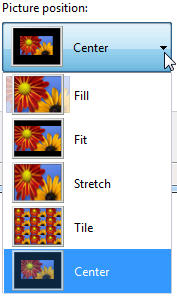
To choose the right background, spend some time on the Picture Position drop-down menu, shown in the top, left corner. A click on that menu offers these options:
Center: This centers your image on the screen. If the image is small, you’ll see a solid-colored border around the edges. On large images, you’ll see the very center of the image, with the rest outside of view. Choose this for small logos, close-ups of spider webs, and similar things where the focus belongs on the center.
Fill: This shrinks or enlarges your photo to fit your monitor’s width. That keeps everything in perspective, but chops off the top and bottom of large images and often stretches tiny images beyond recognition. Choose this for horizon shots, where a photo’s top and bottom often aren’t missed.
Fit: Misleadingly named, this option shrinks or enlarges your photo to fit your monitor’s height. Everything stays in perspective, but it lops off the sides of large images, and puts borders along the left and right sides of small images. I rarely use this one.
Stretch: Choose this when you must fit all of the photo on the screen, perspective be damned. This might work for some abstract or outdoors shots, but any easily recognizable objects like people or animals may look distorted as Windows stretches or shrinks them to meet your monitor’s confines.
Tile: Meant for small images or textures, this repeats the same image across the background like tile along a bathroom wall. You’ll find zillions of downloadable textures for tiling across your desktop.
As for your screensaver woes, Windows 7’s screensaver features are a step down from Windows XP, and there’s no built-in way to display a photo’s file name atop the photo.
Update (Thanks, Sharon!): Several models of Hewlett Packard computers running Windows 7 aren’t able to save their wallpaper position changes. Hewlett Packard fixed the problem by releasing a patch, which you can download by following these instructions:
- Go to the Support area of Hewlett Packard’s Web site.
- In Step 1 of HP’s Web site, choose the “Download drivers and software (and firmware)”
- In Step 2 of HP’s Web site, enter your product name (e.g. pavilion 2022.)
- Click on the link matching your PC model.
- Choose Windows 7 operating system (either 32-bit or 64-bit) .
- Scroll down the list to “Select software and drivers” and choose “Wallpaper picture position enabler.”
If you can’t find your product name in Step 3, try downloading running HP’s patch directly:
Posted: January 13th, 2010 under Windows 7, Windows 7 for Dummies, Windows XP.
Tags: bug, bug fix, can't change wallpaper, center, desktop background, fill, fit, Hewlett Packard, perspective, sp45575.exe, stretch, Wallpaper picture position enabler
Comments
Comment from Andy Rathbone
Time November 20, 2011 at 11:50 am
Urmas, if you want your picture to keep its perspective yet fill the screen, then you need to crop the picture so it matches the proportions of your monitor.
If your monitor is 4 by 3, for example, you’ll need to crop your picture to be 4 by 3, as well.
If that’s too much work, choose Center. That places the center of your picture in the center of the monitor. The photo’s edges will probably be out of view, but at least everything will be in perspective.
Comment from Dean Galloway
Time June 14, 2012 at 12:41 pm
Having spent many hours cropping and resizing photos for the 25 desktop sizes we offer on http://www.desktoppictures.com/ the new options in Windows 7 are very welcome, because they make it unnecessary to provide every screen resolution a visitor may need. For scenic landscapes and abstract pictures, keeping the original composition of the photo is almost always more important than the distortion that the stretch setting produces; you would be hard-pressed to say what the original format was in almost every case. But when you need to crop (for people, flowers, etc. — as you mention in your article), Windows 7 allows you to both resize and crop without losing quality (as long as you start with a big enough image).
Comment from Andy Rathbone
Time June 14, 2012 at 1:06 pm
Dean: You’re right, Windows 7’s background options are much nicer than before. Windows 8 makes it even easier to create desktop backgrounds, but with a twist — literally. Windows 8 crops the images so they’ll still work on tablets, which are often rotated. As you rotate the tablet from landscape to portrait mode, the background turns, as well, but without leaving bars along the photo’s edges.
As you say, the key is to start with a high-resolution image; that gives Windows enough leeway to crop without losing the picture’s original perspective.
Comment from Dean Galloway
Time June 14, 2012 at 4:22 pm
Thanks so much for the info about Windows 8. I’m looking forward to learning more about the tablet format for backgrounds. I’ve made a few for myself, and like how it rotates. It sounds like it’s going to become even more popular. Thanks again for the info.
Comment from susan
Time August 9, 2012 at 5:26 pm
THANK YOU! This has been driving me nuts for ages. I love the Internet!
Comment from Bram
Time February 1, 2014 at 3:33 pm
Thanks. Although I still use XP, this post made me understand things better.
I wonder about your explanations of ‘Fill’ and ‘Fit’. Does the the result depend only on the size of the original, as your examples suggest, or does it depend primarily on the original’s proportions?
I would suppose that Fill will chop of the top and bottom of the original if that is more ‘squary’ than the desktop, for example when using a 4:3 image on a widescreen. On the other hand, I would expect that this option add solid-coloured bars on the top and bottom of ‘widescreen’ images on a 4:3 desktop. Can you confirm this?
Interestingly, some graphic viewer have extra options above the XP ones as well. When you choose Set as Wallpaper in IrfanView (currently using v4.36) with the options Centered, Stretched or Tiled, IrfanView makes a BMP copy of your original image and uses the operating systems options with the same name for positioning the image. But if you choose the option ‘Stretched (proportional)’, it makes a resized copy of the image instead, with the same proportions as the original but with either width or height of the desktop.
So this extra option resembles the Fill and Fit options of Windows 7, depending of the proportions of the image. XnView has the same options but it calls stretch ‘Fit to desktop’ and call the extra option ‘Best fit to desktop’.
Comment from Phil
Time March 26, 2019 at 12:14 pm
I think the descriptions above of “Fill” and “Fit” are not exactly correct. How your photo actually gets resized depends on the aspect ratio of the picture and of the screen you are displaying the picture on.
“Fill” makes the picture as small as it can be without creating borders on the sides or top. In other words it “fills” the screen.
“Fit” makes the picture as large as it can be, while not cropping anything. In other words, it “fits” the entire picture on the screen.
For “portrait” pictures of specific things (e.g. people, buildings) I usually use Fit because it always shows the entire picture. If it’s a nature shot or just general scenery where some cropping is fine, I use center or fill because they won’t produce a border.
Stretch is not usually my preference for anything.
Tile only works if you have a small “pattern” picture that is meant to be tiled…or if you want 30 pictures of your pug.
Comment from urmas
Time November 18, 2011 at 6:26 am
how i can fit pisture to screen on XP? There are only strech, tile, center! i like everything stays in perspective on my new monitor