
Making sure Windows’ firewall is turned on
 I cover Windows’ built-in firewall in my books Windows XP For Dummies, Windows Vista For Dummies, and Windows 7 For Dummies. But if you ever need to turn on the firewall or make sure that it’s turned on and protecting your PC, follow these steps:
Turning on the firewall in Windows 7
- Click the Start button and choose Control Panel.
- Click the System and Security category, and choose Windows Firewall.
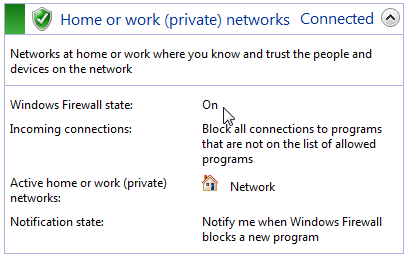
- If the Firewall section shows a button called “Choose Recommended Settings,” click the button to turn on the firewall.
If you don’t see that button, and the window looks more like the one below, your firewall is already turned on. (The mouse pointer points at the word “On,” above.)
Turning on the firewall in Windows Vista
- Click the Start button and choose Control Panel.
- Click the Security category, and choose Windows Firewall.
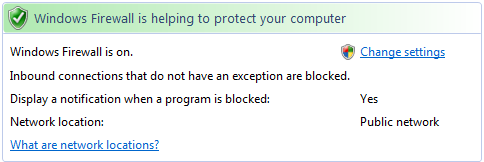
When the firewall is turned on, the window will look like the one below; note the first line, saying that “Windows Firewall is on.”
Turning on the firewall in Windows XP
Windows XP’s Service Pack 2 automatically turns on the firewall. But if you’re not sure whether yours is turned on or not, follow these steps:
- Open the Start menu, right-click on My Network Places, and choose Properties.
- Right-click on the connection you want to protect and choose Properties.
- Click the Advanced tab and click in the little box in the Internet Connection Firewall section.
That turns on your firewall.
But what, asked several readers, if the Start menu doesn’t have a “My Network Places” to right-click on?
Then follow these steps.
- Open the Control Panel from the Start menu.
- Click on Network and Internet Connections in the Control Panel.
(Already see an icon named “Network Connections”? Then double-click it and move to step Four).
- Click on the Network Connections icon.
- Right-click the Internet connection you want to protect and choose Properties.
- Click the Advanced tab.
- Click in the little box in the Internet Connection Firewall section.
Also, how do you know which connection you want to protect? Here are the rules:
- To protect your dial-up connection, click the icon in the Dial-Up section.
- To protect your DSL or cable modem connection, click the Local Area Connection icon.
Tip: If you see a 1394 Connection icon, don’t place the firewall there. That’s your computer’s “FireWire” or “i.LINK” port, used mainly for connecting digital video cameras or older iPods.
There’s another catch if you’ve set up your own computer network. If you’re using Windows XP’s Internet Connection Sharing feature to share a single Internet connection between all your networked computers, only activate XP’s Firewall on the computer that physically connects to the Internet. You don’t need it on the other computers.
If you’re not satisfied with the one-way firewall in Windows XP, feel free to use a two-way firewall from a third party.
If you’re using America Online to connect to the Internet, however, these instructions won’t help at all. America Online installs its own connection settings that override the ones that come with Windows XP. And America Online’s connection settings don’t include a way to turn on Windows XP’s built-in firewall.
Posted: September 10th, 2009 under Windows 7, Windows Vista, Windows XP.
Tags: firewall, windows firewall