
Finding Freecell in Windows 8
 Q: I’m an old dog trying to learn a lot of new tricks in order to use Windows 8.
I’m having a terrible time trying to find games like Freecell, Hearts, Spades, and Pinball to play in order to relax as I break away from the awkwardness of learning this new way of doing things.
How do I find these simple and free games in Windows 8? I’d love to be able to place them on my Start screen.
A: Windows 8 removed the traditional Windows Start button, much to the dismay of many longtime owners.
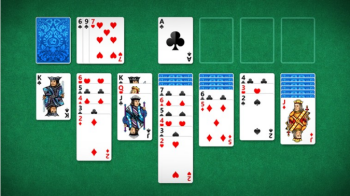
For many people, Microsoft took an even more drastic step: Windows 8 removes the beloved games enjoyed by Windows owners for a decade. You won’t find Freecell or any other traditional Windows games bundled in Windows 8.
They’re not gone forever, though: Those games live on as free apps available from the Store app.
To bring some fun back into the chore of learning a new operating system, follow these steps:
- Head for the Start screen by pressing the Windows key.
- Open the Store app’s tile with a click or a tap, and wait for the Store to fill the screen.
- Head for the Games section, and look at the Top Free games tile. There, you’ll find hundreds of free games to install and play on your computer.
- Choose Microsoft Solitaire Collection, and select the Install button.
- Repeat the first four steps for Microsoft’s free Pinball FX2 game.
When you’re through, your Start screen will have two new tiles. One loads Freecell and four other solitaire card games; the other loads the latest edition of Pinball.
Posted: February 25th, 2013 under Free software, Software, Windows 8, Windows 8 For Dummies.
Tags: adding windows games to Windows 8, Freecell, pinball, windows old games
Comments
Comment from Sunny
Time April 28, 2013 at 4:16 am
I like the orginial Microsoft games, thank you. I am disappointed that the traditional games aren’t included in the Windows 8.
Comment from Vivian
Time July 18, 2013 at 4:01 pm
why would the ‘Microsoft Solitaire Collection’ app need access to my pictures library including “adding, changing or deleting files”. You have to agree to this to install the app
Comment from Andy Rathbone
Time July 18, 2013 at 4:41 pm
Vivian, the Microsoft Solitaire Collection lets you customize your playing cards with photos from your Pictures library. In looking at the Store’s description for the app, it seems to asks for permission to use two things:
* Your Pictures library
* Your Internet connection
I’m not seeing where it asks for permission to add/change or delete files.
Comment from Rhoda
Time December 8, 2013 at 5:48 am
I have the same question ans Vivian. I chatted with 4 people from microsoft and none could tell me why the app needs to “add,change or delete files.
Comment from Terrell
Time March 12, 2015 at 10:58 am
Created a folder somewhere and name it “Freecell”. Obtain a copy of freecell.exe and cards.dll from older version of Windows. Put these 2 files into this folder. Make a shortcut for Freecell.exe. Put the shortcut on the desktop or taskbar.
Comment from Nancy
Time March 31, 2015 at 2:15 pm
I used to be able to play Spades and Freecell at the same time. I loved it; I could do it while I watched TV, talked on the phone, etc. Now I get a huge screen for each game that I don’t seem to be able to minimize, and I see no way to play two games at once. I also liked the format of the old games better. It was easier to see the current score, etc. Simple is better.
Comment from Tom
Time October 15, 2018 at 10:56 am
The Windows 8 FreeCell was pretty cool to play. At least I have always enjoyed myself. Now on Windows 10 I think the FreeCell game is not that good anymore. So I’m currently playing online solitaire in the browser – just as much fun
Comment from Richard Dasen
Time March 1, 2013 at 4:59 pm
I don’t want their glitzy new free cell. I want the classic game that I played for years.