
Adjusting desktop icon spacing in Windows 7
 Q: Windows Vista allowed me to specify Icon Spacing (Horizontal) and Icon Spacing (Vertical) from an Advanced button on a Display Properties screen from within Control Panel. How do I navigate to this same control within Windows 7? It is probably in your fine book. I just can’t find it.
A: With today’s mixture of monitor sizes, changing your desktop icon spacing makes a world of difference in how your desktop looks, feels, and behaves.
Just as with Windows Vista (and Windows XP), Windows 7 lets you adjust the space between your desktop’s icons. However, Microsoft moved the setting in Windows 7. To find it, follow these steps:
- Right-click a blank part of the Desktop and choose Personalize.
- Click the Windows Color icon near the bottom of the Personalize window.
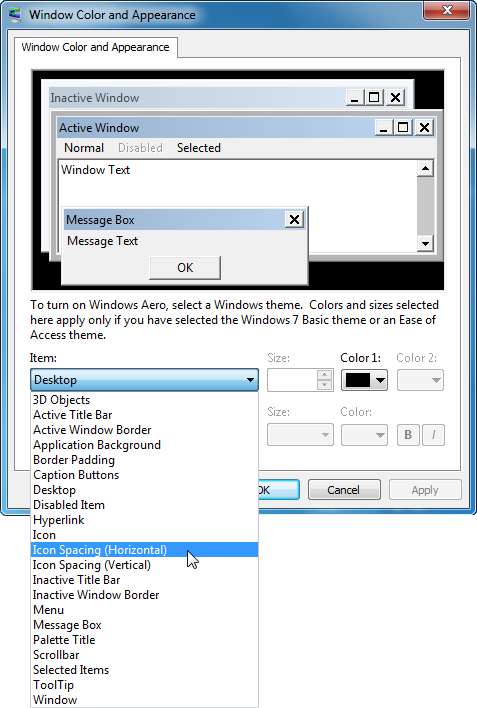
- Choose Advanced Appearance Settings at the bottom of the Window Color window. (The familiar Windows Color and Appearance window appears.)
- In the Item drop-down list, choose either Icon Spacing (Horizontal) or Icon Spacing (Vertical) and choose the desired spacing in the Size box.
- Click Apply to test your changes. Not perfect? Head back to Step 4 and experiment until you find spacing you like.
- Choose OK when you’ve spaced them to meet your needs.
Posted: September 8th, 2009 under Windows 7.
Tags: adjust desktop icon spacing, adjusting icon spacing, Desktop, horizontal icon spacing, Icon Spacing (Horizontal), Icon Spacing (Vertical), vertical icon spacing
Comments
Comment from Mike
Time April 25, 2011 at 10:56 pm
The text line spacing for Word Pad in Windows 7 only provides for ratios 2.5, 2.0, 1.5 and 1.0. The 1.0 setting is still too wide for me. How can I get narrower spacing, for example, one line spacing?
Comment from Andy Rathbone
Time February 17, 2012 at 11:57 pm
Mike: In another post, I explain how to change line spacing in WordPad.
Comment from Mike
Time April 26, 2011 at 7:03 pm
Hi Andy: It’s me again with reference to the line spacing problem. Since sending you an e-mail I have resolved the problem. Essentially, I was concerned at not being able to condense my lines of type into a one line gap. The Line Space Icon provides line spaces of 1.0 1.25 1.5 and 2.0 However,I didn’t realise that the foregoing spacer provision is matched to the selected margin. I was busily typing my text and clicking the Enter key when I wished to proceed to the next line, which realised a negative result. The Line Spacing Icon shows a small ticked box named ‘Add 10pt space after paras’. After I removed the aforesaid tick and selected the appropiate line spacing I was free to type my text and use the enter key haphazardly to continue typing my text within the framework of a one line separation. Rather an unorthodox typing method, but it works for me!
Comment from Marius
Time September 7, 2012 at 11:22 pm
Thank you, Andy. Your tip works like a magic and solved my problem.
Comment from Skye
Time March 6, 2013 at 9:14 pm
For some reason, when I change the values for vertical icon spacing, the spacing stays the same for approximately 43-38, then makes a large jump of a change when moving down to 37. I somehow previously had a setting in between in terms of visual spacing, but I can’t seem to replicate the exact spacing manually. Is there a way to make slight spacing value changes more relevant?
Thanks
Comment from Andy Rathbone
Time March 6, 2013 at 9:45 pm
That’s a new one to me. If you find an answer, though, let me know, and I’ll post it here for others.
Comment from Steve Swift
Time June 1, 2013 at 3:22 am
The vertical spacing seems to be “quantised”. As I incremented from 10 to 40, my icons shifted every 8 pixels or so. I have room for 18 rows on my secondary display, and I was trying to get the text of the bottom row as close to the bottom of the display as possible. It would have been simple with 1-pixel increments (as the UI offers) but in practice I never got closer than about 1cm.
Comment from Andy Rathbone
Time June 1, 2013 at 11:41 am
That incremental jump happened to somebody else in the comments here. Perhaps the setting changes depending on the current screen resolution. And to tell you the truth, my resolution is set so high that I wouldn’t notice a one-pixel change.
Comment from Jamal Abdul Aziz
Time August 24, 2013 at 2:12 pm
I tried the above steps but it did not work.
Comment from Andy Rathbone
Time August 25, 2013 at 10:45 am
Jamal: Video issues in Windows can be very difficult to track down. Try making sure you’ve updated your video drivers to their latest version. And try lowering or raising your screen resolution, as well, to see if you can narrow down the problem on your computer.
Comment from Nandu
Time February 16, 2010 at 5:17 pm
thanks